What Does Collate Mean When Printing?
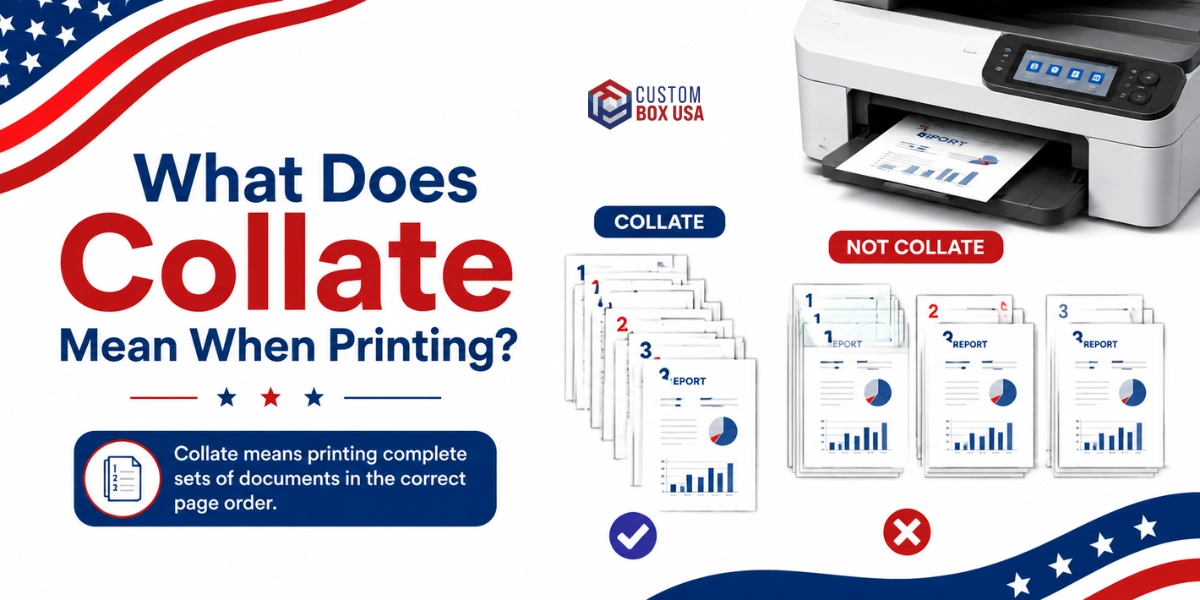
When printing a multi-page document, you may come across a print option called Collate. But what does collate mean, and why is it important? Simply put, the collate setting determines the order in which multiple copies of a document are printed, helping you keep each complete set organized and ready to use.
For example, if you are printing a 5-page report and need 10 copies, selecting Collate will print pages 1–5 in order to create the first complete copy, then repeat the same sequence until all 10 copies are finished. If you leave collating unchecked, the printer will produce ten copies of page 1, followed by ten copies of page 2, and so on. You would then need to manually sort and assemble all the pages.
For businesses, this simple setting can save valuable time and prevent costly sorting errors. Collated printing is especially useful for multi-page inserts, instruction sheets, product information, and booklets that are placed inside custom packaging and boxes. In the past, printing, sorting, and assembling these materials could be a tedious, time-consuming process. Today, an automatic collating setting makes the process much faster, easier, and more efficient.
Collated vs. Uncollated Printing: How Do These Settings Work?
When printing multiple copies of a multi-page document, choosing the right print setting can make a big difference. Most printers offer two options: Collated and Uncollated. While the difference may seem small, selecting the right option can save you time and eliminate the hassle of manually sorting pages.
Collated Printing (On): Complete Sets, Printed in Order
When Collate is turned on, the printer produces each complete copy of the document in the correct page order before moving on to the next copy.
For example, if you are printing 3 copies of a 3-page document, the printer will arrange the pages like this:
1, 2, 3 - 1, 2, 3 - 1, 2, 3
Each group is a complete, ready-to-use copy of the document. This is particularly useful for reports, instruction sheets, brochures, booklets, and multi-page inserts that need to be placed into custom packaging.
Uncollated Printing (Off): Pages Grouped Together
When Collate is turned off, the printer groups identical pages together rather than creating complete document sets.
For the same 3-page document with 3 copies, the order would be:
1, 1, 1 - 2, 2, 2 - 3, 3, 3
This option can be useful when you want all copies of the same page together, such as when distributing individual pages or preparing materials that will be assembled or organized separately.
Which Printing Setting Should You Choose?
For a short document with only a few copies, the difference between collated and uncollated printing may not seem significant. However, when printing long documents or large quantities, choosing the right setting can save considerable time and effort.
If you need complete, ready-to-use sets, choose Collated. If you need identical pages grouped together, choose Uncollated. Understanding this simple setting can make your printing process faster, more organized, and much easier to manage.
|
Collated |
Uncollated |
|
|---|---|---|
|
Page Order |
1, 2, 3 / 1, 2, 3 / 1, 2, 3 |
1, 1, 1 / 2, 2, 2 / 3, 3, 3 |
|
Best For |
Booklets, reports, manuals, presentations |
Flyers, posters, single-page handouts |
|
Ready to Distribute |
Yes, immediately |
No, it needs manual sorting |
|
Common Use Case |
Multi-page documents read in order |
Standalone pages with no sequence |
How to Turn On Collate When Printing: Step-by-Step Guide
Activating the Collate function is a quick process, but because it is a hardware driver command rather than a document-level setting, its placement varies slightly depending on your operating system, software application, and printer driver.
Below is how to access and configure collation across all major environments and platforms.
1. Operating System Instructions
On Windows Systems
- Open your document and launch the print window by pressing Ctrl + P.
- Select your target printer from the destination menu.
- In the Copies field, enter the desired number of duplicates (collation controls activate only when requesting two or more copies).
- Locate the Page Handling or Settings section and select Collated to print complete sequential sets, or Uncollated to print pages in identical groups.
- Click Print to send the job to the queue.
Note: Most modern Windows print spoolers automatically check the Collated box by default once you increase the copy count beyond one.
On Apple macOS
- Open your document and press Command + P.
- If only basic controls appear, click Show Details (or More Settings) at the bottom of the dialogue box to expand options.
- Input your total copy count.
- Locate the Collate checkbox near the copy counter or under the Paper Handling drop-down menu.
- Ensure the box is checked for ordered document sets and click Print.
2. Application-Specific Print Setup
In Microsoft Word & Excel
In both Word and Excel, navigate to File Print using Ctrl+P. Directly beneath the page selection fields, click the collation drop-down menu to switch between Collated [1,2,3] and Uncollated [1,1,1] before executing the print job.
In Adobe Acrobat & PDF Readers
Press Ctrl + P (Windows) to bring up the Adobe print engine. Under the Page Sizing & Handling module, locate the Copies input box and tick the Collate checkbox situated immediately adjacent to it.
In Web Browsers & Google Docs
When printing from Google Docs, Chrome, Edge, or Safari, navigate to File Print. Because browser print dialogues rely heavily on host system defaults, collation is typically handled automatically once you specify multiple copies. If custom options are needed, expand the More Settings menu within the print preview panel to verify collation preferences.
Does Your Printer Model Matter?
Yes. While the software dialogue controls where you toggle the setting, your physical printer’s driver determines how the job is processed:
HP Desktop Printers
Process collated files through host-based computer memory, outputting finished sets sequentially into the top tray.
Brother & Commercial Office Copiers
Utilize onboard RAM (often requiring Mopier Mode to be enabled in printer properties) to handle high-volume set separation internally, reducing network traffic during large commercial print runs.
Pro-Tip Before Printing Large Runs
When printing complex multi-page documents—such as instruction manuals, presentation booklets, or product packaging inserts—always perform a single test set. Verifying your collation and margin alignment first prevents paper waste and saves hours of manual sorting.
Collate Option Not Working? Here’s What to Check
Sometimes, a printer may not collate pages correctly even when the Collate option is turned on. The issue is often related to printer drivers, software settings, or temporary system problems. Here are a few common things to check.
Check the Printer Driver
An outdated or corrupted printer driver can prevent certain printing features from working properly. Try downloading the latest driver for your specific printer model from the manufacturer's official website.
Restart Your Printer and Computer
A simple restart can often fix temporary printing issues. If the print spooler is malfunctioning, the printer may not process the Collate setting correctly. Restart both devices and try the print job again.
Test Another Application
If the printer collates correctly from one application but not another, the issue may be with the original program's print settings. Try printing the same document from another application to determine whether the problem is application-specific.
Check Printer Firmware
For network-connected office printers and copiers, outdated firmware can sometimes cause compatibility problems after an operating system or software update. Check whether a firmware update is available for your printer.
When Should You Use Collated vs. Uncollated Printing?
The best option depends on what you are printing and how the finished pages will be used.
Choose Collated Printing When:
Collated printing is ideal when each copy needs to remain together in the correct page order. It works well for booklets, catalogs, product guides, training manuals, contracts, proposals, conference handouts, exam packets, invoices, and multi-page packaging inserts.
For example, if you print 20 copies of a 10-page product guide, collated printing produces 20 complete sets, ready to distribute or place inside your packaging.
Choose Uncollated Printing When:
Uncollated printing is more useful when you want identical pages grouped together or plan to organize the pages yourself. It can be helpful for single-page flyers, posters, individual forms, or projects where the order of the pages does not matter.
The Bottom Line
Collated: complete document sets in the correct page order.
Uncollated: identical pages grouped together.
Choosing the right setting before printing can save time, reduce manual sorting, and keep multi-page materials organized—especially when producing large quantities for business or packaging needs.
Collating vs. Binding: Understanding the Distinction
A common misconception in post-press production is confusing collating with binding. While both processes frequently take place during document finishing, they represent two completely distinct mechanical operations:
- Collating is strictly the act of arranging loose sheets of paper into their proper numerical sequence (e.g., Page 1, Page 2, Page 3).
- Binding is the physical process of securing those ordered sheets together along one edge using mechanical fasteners, wire, thread, staples, or hot-melt adhesives.
To better understand how these two operations interact, consider how different print products are manufactured:
|
Product Configuration |
Collated? |
Bound? |
Operational Purpose & Real-World Example |
|
Collated & Bound |
Yes |
Yes |
Multi-Page Reports & Books: Pages are pre-sorted in chronological order (1, 2, 3, or more) and then stapled, saddle-stitched, or perfect-bound to preserve that sequence permanently. |
|
Collated, Not Bound |
Yes |
No |
Custom Packaging Inserts & Unfastened Guides: Step-by-step instruction sheets or promo inserts tucked inside custom boxes where pages must be read sequentially but left loose for easy handling. |
|
Bound, Not Collated |
No |
Yes |
Notepads & Tear-Off Scratch Pads: Stacks of identical blank or lined pages glued along the top edge (padded). Order does not matter because every sheet is identical. |
|
Neither Collated nor Bound |
No |
No |
Bulk Promotional Handouts: Stacks of identical single-page flyers, coupons, or business postcards shipped in bulk. |
Does Collating Impact Commercial Printing Costs?
The financial impact of collation depends heavily on whether your job is output on desktop hardware or processed through commercial production lines:
Desktop & Small Office Printing
For desktop printers, collation is strictly a software driver setting. It consumes zero extra ink, paper, or labor, and therefore costs nothing extra.
Commercial Print Production
In commercial print environments, digital presses handle collation in-line during the printing process without added fees. However, on large-scale offset runs, offline finishing machines or manual labor may be required to sort, fold, and bundle complex multi-signature sections.
Automated Equipment
Modern print facilities utilize automated inline collators connected directly to binding lines, typically including basic collation in the standard unit price.
Manual or Complex Assembly
If your project involves multi-part packaging inserts, custom die-cut components, or mixed media stocks that cannot pass through automated gathering trays, a minor finishing or labor charge may apply.
Pro-Tip for Project Managers: Always ask your printing partner during the quoting phase whether page collation is included in the base rate or listed as a separate line item under finishing services.
The Historical Origins & Etymology of "Collate"
The word collate has a rich linguistic history that predates modern digital printers by centuries. It originates from the Latin verb collatus—a combination of the prefix con- (meaning "together") and latus (meaning "borne" or "carried"). Literally translated, to collate means "to bring together."
Historical Evolution of the Term:
16th Century (Legal & Scholarly Use): The word first appeared in English law and academic circles during the mid-1500s, where it referred to comparing multiple copies of manuscripts or legal texts side-by-side to verify accuracy and identify discrepancies.
Late 18th Century (Typography & Bookbinding): As industrial printing presses expanded page counts and book production accelerated, typographers and bookbinders adopted the term to describe the physical gathering and verification of printed paper sections (signatures) prior to binding.
Today, while the process has evolved from manual hand-gathering at bindery tables to automated digital spooling, the fundamental goal remains unchanged: ensuring information is brought together in precise, logical order.
Industry Applications of Collated Printing
Collated printing plays an essential role across multiple sectors where multi-page documentation and physical packaging components must be organized accurately for end users.
1. Commercial Print Shops & Publishing
In commercial print environments, collation is vital for producing multi-page manuals, annual reports, proposals, and catalog runs. Ensuring pages emerge in precise numerical order eliminates hours of manual gathering and prevents costly misprints before binding operations begin.
2. Paper-Based Custom Packaging & E-Commerce
Packaging manufacturers frequently rely on collation when assembling multi-piece box inserts. When a single packaging unit requires an assembly guide, warranty sheet, promotional coupon, and product safety leaflet, collation systems bundle these separate paper elements into complete, ordered sets ready for insertion into retail boxes.
3. Corporate Organizations & Financial Institutions
From employee onboarding handbooks to financial statements, human resource packets, and legal contracts, collated printing allows corporate offices to generate ready-to-distribute document sets instantly off desktop or network print trays.
4. Educational & Academic Institutions
Schools, universities, and training centers utilize collated printing to create course syllabus packets, multi-page test booklets, and presentation handouts, ensuring students receive complete materials without missing pages.
Industrial Book Collation: Signatures & Quality Assurance
While collation on a desktop printer happens automatically via software, industrial book collation is a precision-engineered manufacturing process where a single misplaced sheet can ruin an entire production run.
What Is a Book Signature?
Commercial presses rely heavily on offset printing and its significance in printing industry workflows, especially when producing book pages rather than printing individual sheets one at a time. High-speed presses print multiple pages onto large parent sheets of paper, which are then folded down by precision machinery into multi-page sections called signatures—typically containing 4, 8, 16, or 32 folded pages.
How Collation Marks Prevent Assembly Errors
To prevent automated gathering machinery or bindery workers from swapping or omitting a signature, commercial printers utilize collation marks.
Collation marks are small, printed black blocks placed along the outer folded spine of each signature. When the signatures are gathered in correct numerical sequence, these printed marks line up to form a continuous, visual staircase pattern down the spine of the unbound book block. If a section is out of order, missing, or duplicated, the staircase pattern breaks visually, allowing quality assurance teams to intercept the error instantly before gluing or stitching.
Key Operational Benefits of Using Collate
Activating the collation setting on multi-copy print jobs yields immediate operational advantages:
- Eliminates Manual Sorting: Removes the need to manually gather pages from separate stacks after printing, saving valuable administrative hours.
- Streamlines Distribution: Produces finished, document-by-document sets that are immediately ready for stapling, binding, or distribution to recipients.
- Prevents Page Sequence Errors: Minimizes missing, duplicate, or out-of-order pages, maintaining professional quality across all printed sets.
Best Practices for Error-Free Collated Printing
To avoid paper waste and ensure smooth print execution, follow these quick prepress checks before launching high-volume jobs:
- Verify Software Settings: Double-check your print dialog window to confirm whether the job is set to Collated or Uncollated before sending it to the queue.
- Standardize File Naming: Assign descriptive file names (e.g., Assembly-Guide-v2.pdf instead of Document1.pdf) to make set identification straightforward during print management.
- Conduct Pre-Flight Page Inspections: Review page ordering, page numbering, and blank page inclusions in your digital preview before sending data to the printer spooler.
- Utilize Digital Previews: Use online design or PDF preview tools to inspect page order and layout imposition before committing resources to a large print run.
- Consult Commercial Print Partners Early: For complex multi-signature books or multi-piece packaging inserts, consult your print manufacturer before finalizing dielines and imposition layouts.
Frequently Asked Questions (FAQs)
What is the collate function in printing?
The collate function is a printer driver setting that arranges multi-page document copies into complete, sequential sets (1, 2, 3...) rather than printing all copies of each individual page together (1, 1, 1...).
What is the difference between collated and uncollated printing?
Collated printing outputs complete, ready-to-use document sets in sequential order. Uncollated printing outputs stacks of identical pages together, which must be sorted manually afterward.
Does collating mean binding?
No. Collating strictly arranges pages in their correct sequence. Binding is the secondary physical process of stapling, gluing, or sewing those arranged pages together.
Do commercial printers charge extra for collating?
In digital desktop printing, collation is free. In commercial offset printing, basic digital collation is usually built into unit costs, but manual hand-gathering or complex multi-piece insert packaging may incur minor finishing charges.
What is a signature in book printing?
A signature is a large sheet of paper printed with multiple pages that is folded down into a group (typically 4, 8, 16, or 32 pages) to form a section of a bound book
Partner with Printing Specialists Custom Box USA!
Whether you need step-by-step instruction inserts, warranty cards, or custom promotional booklets, proper collation ensures your printed materials deliver a smooth, high-quality experience to your end customer. At Custom Box USA, we provide custom packaging manufacturing alongside precision printing for inserts, booklets, and product documentation designed to fit your exact specifications.